Fortnite is more than just a game; it's a stage where players from all over the world gather to strategize, inspire their teammates, and sometimes compete against each other. On the battlefield, teamwork and strategic communication are key to victory. Needless to say, voice chat is an essential tool that makes this possible. This article will clearly explain how to set up Fortnite voice chat on different platforms, supporting a more enjoyable and effective gameplay experience.
Part 1: Fortnite Voice Chat Settings – PS4/PS5 & PC & Xbox
The setup process is almost identical for PS4, Xbox, and PC. Regardless of the platform you use, you can utilize the in-game voice chat function to coordinate with your teammates in real time.
Step 1: Connect headphones and microphone.
First, prepare headphones with a microphone and connect them to your PS4, PS5, PC, or Xbox. This will allow your teammates to hear you.
Step 2: Launch Fortnite
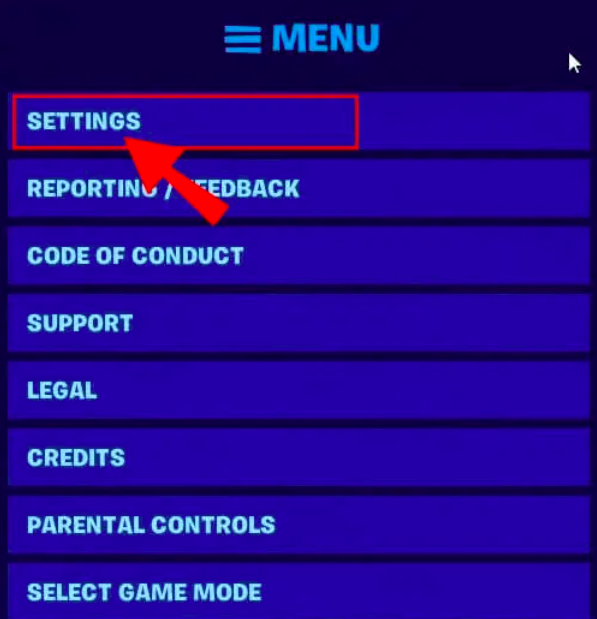
Launch the game and click the settings icon (gear) in the upper right corner.
Step 3: Access audio settings
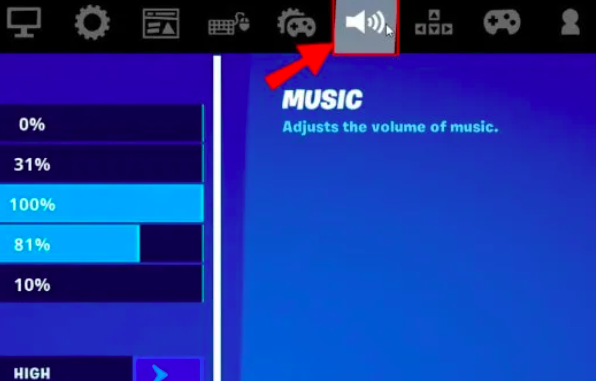
Select "Audio" from the settings menu to proceed to the voice chat settings.
Step 4: Turn on voice chat
Turn on the switch next to "Voice Chat Mode" to enable your microphone. You will now be able to communicate with other players by voice.

Step 5: Adjust other settings
Adjust other options as needed, such as audio quality and subtitle settings. Balancing the volume within the game will result in a more comfortable gameplay experience.
Points to note
The "Push-to-Talk" feature is not available on PS4. Therefore, you must use a headset with a microphone connected to the console.
Part 2: Fortnite Voice Chat Settings – Nintendo Switch
Even on the Switch version, you can use voice chat to communicate closely with your teammates. The setup process is simple and easy to follow.
Step 1: Connect the headphones
Connect the headphones with a microphone to the Switch.
Step 2: Access the settings menu
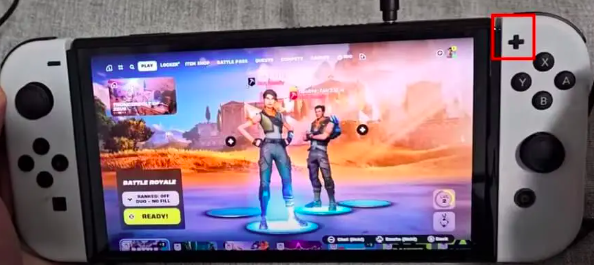
Press the "+" button in the upper right corner of the Switch to open the settings screen.
Step 3: Selecting the Voice Mode
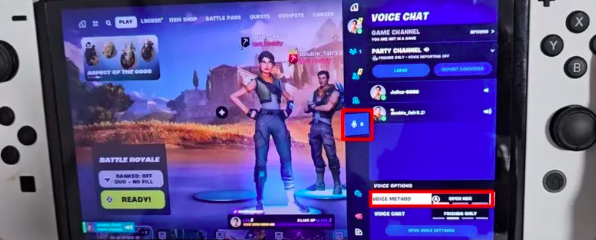
To select the "microphone" pattern, slide the slider in the settings menu downwards.
Step 4: Setting up voice chat
Set "Voice Mode" to "Microphone On" and select the range for voice chat with your friends. Now you can easily use voice chat on your Switch.
All-in-one video converter
Download videos with one click from YouTube, Facebook, Twitter, Instagram, NicoNico, TikTok, Reddit, Netflix, and other video sites. Lossless music converter compatible with Apple Music, Spotify, YouTube Music, SoundCloud, and more. Try it now!
Part 3: Fortnite Voice Chat Settings – Smartphone
Even on the smartphone version, you can communicate with your gaming friends anywhere by using voice chat.
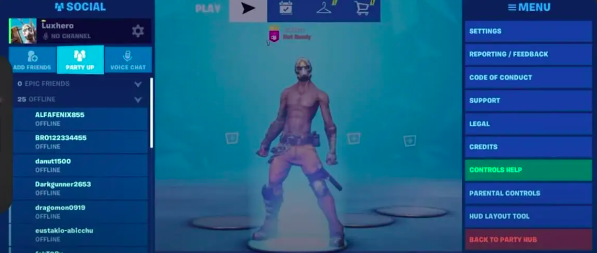
Step 1: Access Settings
First, open Fortnite and go to the settings menu.
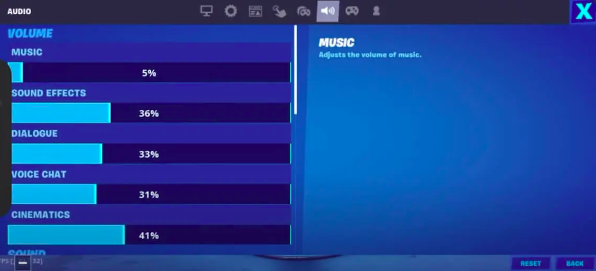
Step 2: Check your audio settings
Select the "Audio" tab and make sure the voice chat audio slider is set to at least 15%.
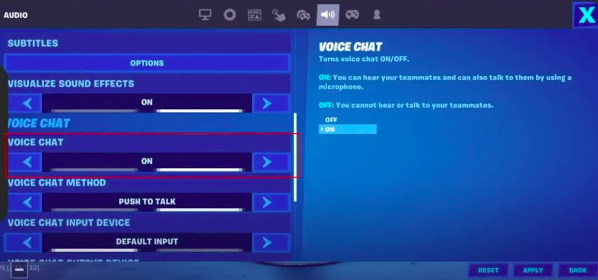
Step 3: Turn on the voice chat option.
Turn on the "Voice Chat" option and select your voice chat method.
Step 4: Save settings
Once you've finished the setup, apply the changes and start voice chatting with your friends in Fortnite.
Part 4: How to make Fortnite voice chat more fun
TopMediai Online Voice Changer
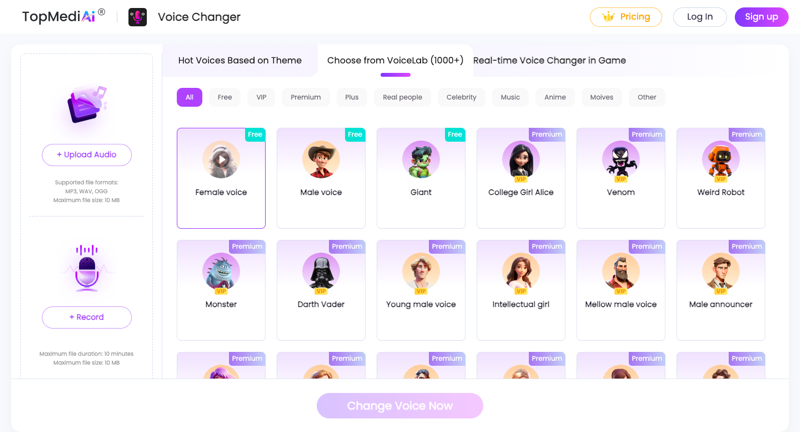
TopMediai Voice Changer is an online, real-time voice changer that's an innovative tool that lets you instantly change your voice while gaming. In popular games like Fortnite, changing your voice can completely transform your strategy and atmosphere.
Features
- A variety of voice effects Transform into the voice of unique characters such as robots, aliens, and monsters.
- Anime character voices : You can change your voice to an anime-style voice like Hatsune Miku, Lolita, or Paimon.
- Real-time voice changes You can instantly change your voice during gameplay, making communication with your teammates even more enjoyable.
- Supported Platforms : Compatible with all kinds of games and chat apps, including Discord, Valorant, PUBG, Second Life, Fortnite, Call of Duty, and more.
Step 1: Access the voice changer
Go to the TopMediai Voice Changer website and select VoiceLab.
Step 2: Select a voice effect
Choose your favorite from thousands of voice modification options and get ready to change your voice.
Step 3: Start changing your voice
Click on your chosen effect to change your voice in real time and enjoy a new voice within the game.
Part 5: Frequently Asked Questions about Fortnite Voice Chat
Q1: What to do if voice chat doesn't work in Fortnite?
- Check Epic Games servers Let's check if the server is running correctly.
- Checking the volume settings Check if your voice chat volume is muted.
- Selecting a channel to use : Recheck your group and game chat settings and select the appropriate channel.
- Console chat settings If you are playing on PS4 or Xbox, be sure to close your console chat before entering game chat.
- Check parental controls Check if the setting is turned off or if the language filter is configured correctly.
結論
Voice chat settings in Fortnite are a crucial element that significantly enhances the gaming experience. Understand the platform-specific settings to ensure smooth communication with your teammates. Furthermore, you can use TopMediai Voice Changer to alter your voice during gameplay for an even more fun experience. May your Fortnite battles be more exciting than ever!