
As Instagram's popularity grows, people are actively posting Reels, posts, and Stories to share everyday moments. Because it's a mobile-centric social platform, uploading videos from your phone is easy. But what if you want to upload videos to Instagram Stories from your PC or Mac? Let's look at how, if possible.

How to upload videos to Instagram Stories from your PC or Mac
You can deepen your relationship with your audience by posting photos, thoughts, and more on Instagram Stories. You can also post Instagram Stories from your PC or Mac.
Method 1: Use the street
Here's how to upload a video to your Instagram Story from your computer using Street:
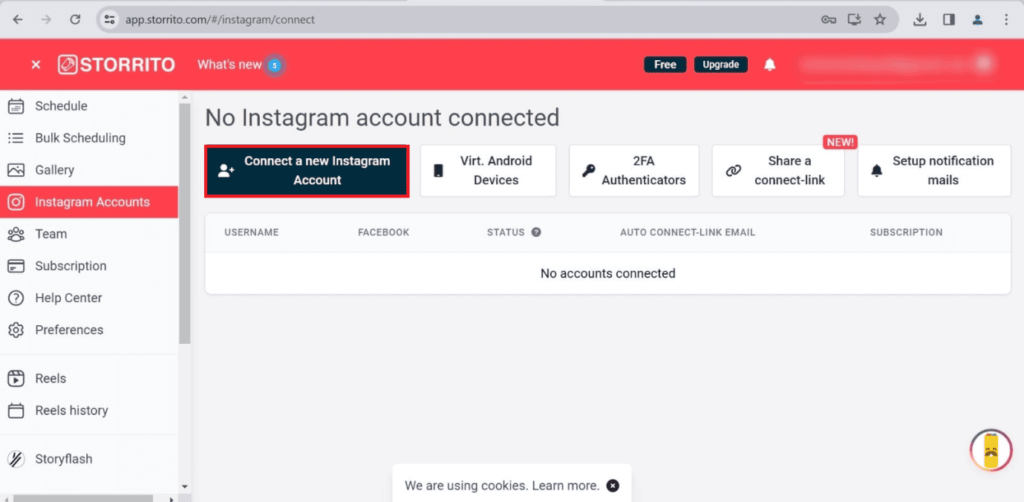
- Open your preferred web browser, Big rito Search for it and sign up.
- Instagram account Click, New Instagram account Connect it.
- Enter your Instagram ID username and password, Save connection I will.
- Click the gallery option on the left and select the video you want to upload.
- edit Clicking this will display the story editor.
- Edit the story to your liking, keep Click here.
- Next, select the same story in the gallery, [Posts/Schedule] Click here.
- Select your Instagram account, [Post Now] or [Schedule the date and time to post] Click here.
Method 2: Use a Chrome extension
Here's how to use the INSSIST Chrome extension to upload videos to Instagram Stories from your PC or Mac:
- Open Chrome, Chrome Webstore Search.
- Search INSSIST, [Add to Chrome] Click here.
- Instagram account Log in.
- The extension icon will appear at the top of the screen (a rectangle with a "+" mark in the center).
- Click the extension and go to the Instagram homepage. [Your Story] Click here.
You can watch a video on how to upload videos.
How to post Instagram Stories from a PC
- Chrome Then log in to your Instagram account.
- On the Instagram window CTRL+Shift+J Press the shortcut key to open the developer tools.
- Click the tablet and mobile phone icons at the top of the screen to display the device bar.
- Reload the Instagram page, [Your story] Click here.

How to post stories to Instagram from a Mac
- Open Safari, Command+Options+J Press this button to open the Develop menu.
- Switch to user agent, Safari Preferences>Advanced Click here.
- Check the "Show Develop menu in menu bar" checkbox.
- Develop>User Agent Click, 「Safari iOS–11.3–iPhone」 Check the box.
- Log in to your Instagram account, [Login] Click to upload your story.
How to post to Instagram from a Mac
- Safari Open it and access the Instagram website.
- [Login] Click, [Select from computer] Select one.
- After editing the image [Total] Click the button.
How to post to Instagram from Chrome on your PC
- Chrome Open Instagram Access this page.
- From the left panel [Create+] Click, [Select from computer] Select one.
- Edit the image, [to the next] Click [Total] Click the button.
How to post to Instagram from a PC without using the app
You will need to use Firefox, Chrome, or another browser. By following the steps above, you can post to Instagram from your PC without using the app.
Instagram Desktop Login
To log in to Instagram on your desktop, access the official Instagram website using your preferred internet browser and log in with your username and password.
Is it okay to post to Instagram from a PC?
Whether you prefer posting to Instagram from a PC or a smartphone, and which is better, depends entirely on your personal needs.
Professionals running business accounts may prefer posting to Instagram using a desktop computer, while others may prefer using a smartphone.
However, here are some differences:
- On smartphones, you can upload stories, live stream, and post photos and videos, but on PCs, you can only post.
- The two cropping functions are different.
- Photo editing is possible using only a smartphone, and a wider range of photo and video editing tools are available.
- You can cross-post using a smartphone app.
- Shopping is only available through the mobile app.
- You can create avatars on the mobile version.
By using browser tricks and third-party apps, you can easily upload photos, videos, or posts to Instagram Stories from your PC or Mac. Have fun adding drawings and writing custom captions. Continue reading our blog for more details, and write any questions below.