


While Snapchat is designed to capture moments in real time using your phone's camera, there's also a way to share older photos. This is useful if you've forgotten to share a great photo you took previously, such as a picture of your pet. In the following guide, we'll show you how to post older photos as new snaps on Snapchat.
How to send old photos as new snaps on Snapchat
Your phone's gallery might be full of photos and videos, but not all of them are suitable for Snapchat. However, you might have taken a perfect snap, but never used Snapchat to capture it. Perhaps you struggled to open Snapchat, or you weren't sure if the photo was suitable.
If you change your mind and decide you want to share, you can easily do so using Snapchat's Memories feature. You can also use Memories to view your old snaps in Snapchat.
1. Use your mobile phone
Snapchat
Open it.
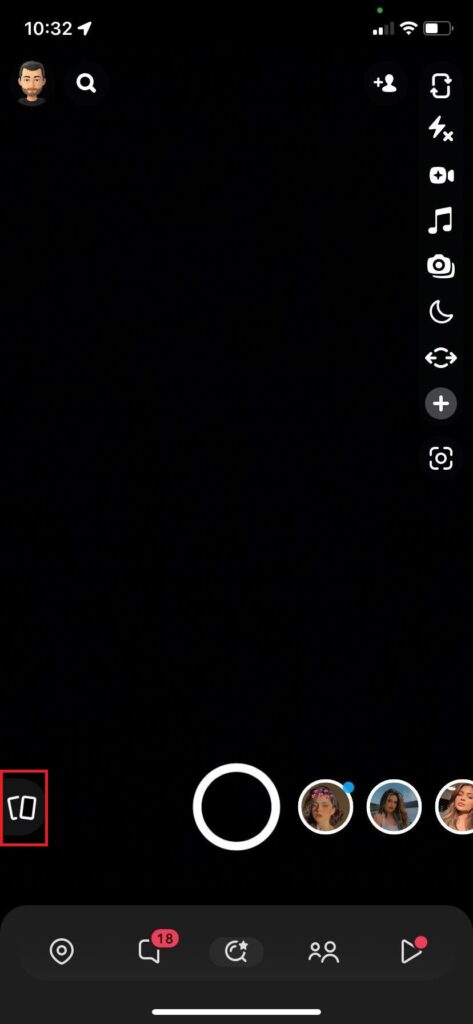
2. Next to the record button
"memory"
option
(Double image icon)
Tap it.
3. Five options will be displayed: "Snaps", "Camera Roll", "Screenshots", "Stories", "My Eyes Only" Five options will be displayed. Camera Roll Select one.
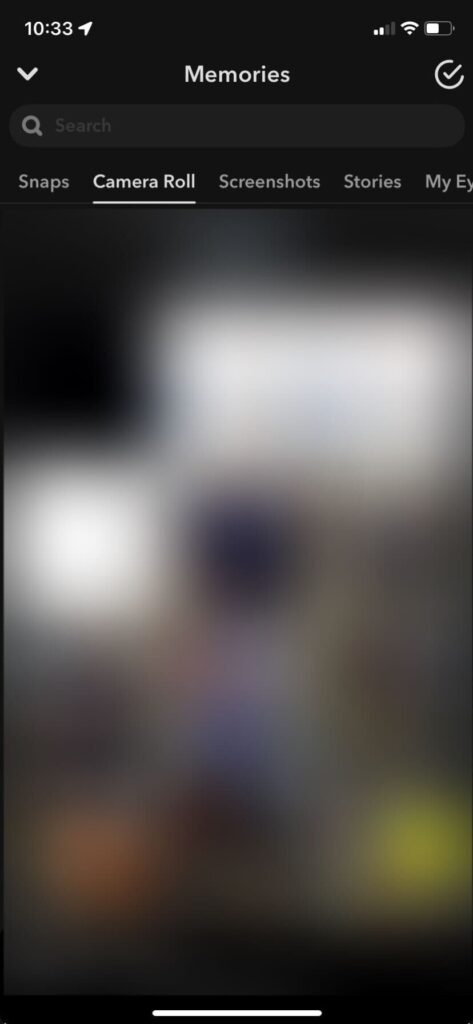
4. Select the photo or video you want to share on Snapchat.
5.
"mail recipient"
Tap the button.
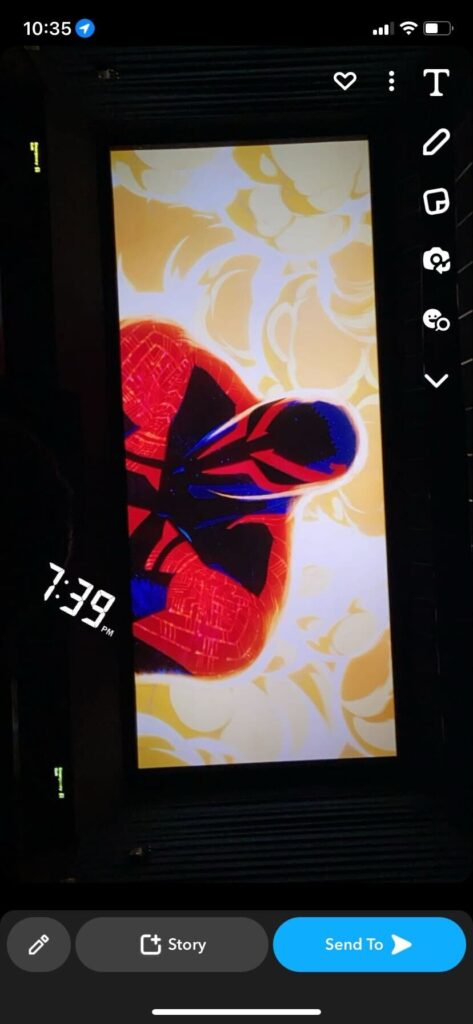
6. Select the recipient you want to send it to.
"send"
button
(Arrow icon)
Press this button.
7. You can also edit the image before sending it. Tap the menu icon (three vertical dots),
Photo editing / Snap editing
Select one.
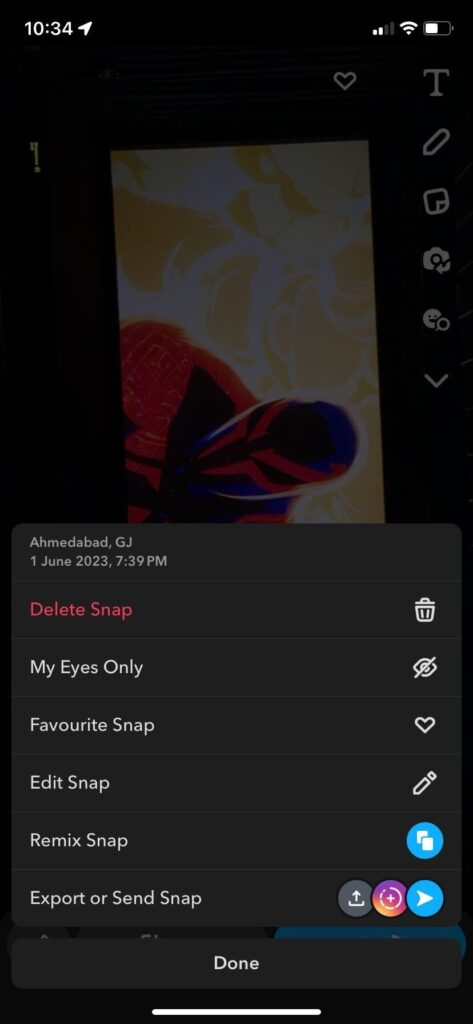
8. Edit photos or videos,
"completion"
Tap it.
The procedure is almost the same for Android and iOS.
If you encounter a problem and the Camera Roll option doesn't appear when you open "Memories," you may need to change the app's permissions first.
Check your phone settings to see if Snapchat can access your photos and videos. If it cannot, change your settings and return to posting. When deleting Snapchat, be sure to save your photos and videos from "Memories." Otherwise, you will lose them.
How to send a saved image as a new snap on Snapchat
If you've saved a snap from a chat or memories, you can also send it as a new snap on Snapchat. This is useful when you want to reshare old memories with friends. Using this method, you can easily find snaps from all the images overflowing in your Snapchat "Memories" section.
1. Open Snapchat,
Chat section
We will move to this location.
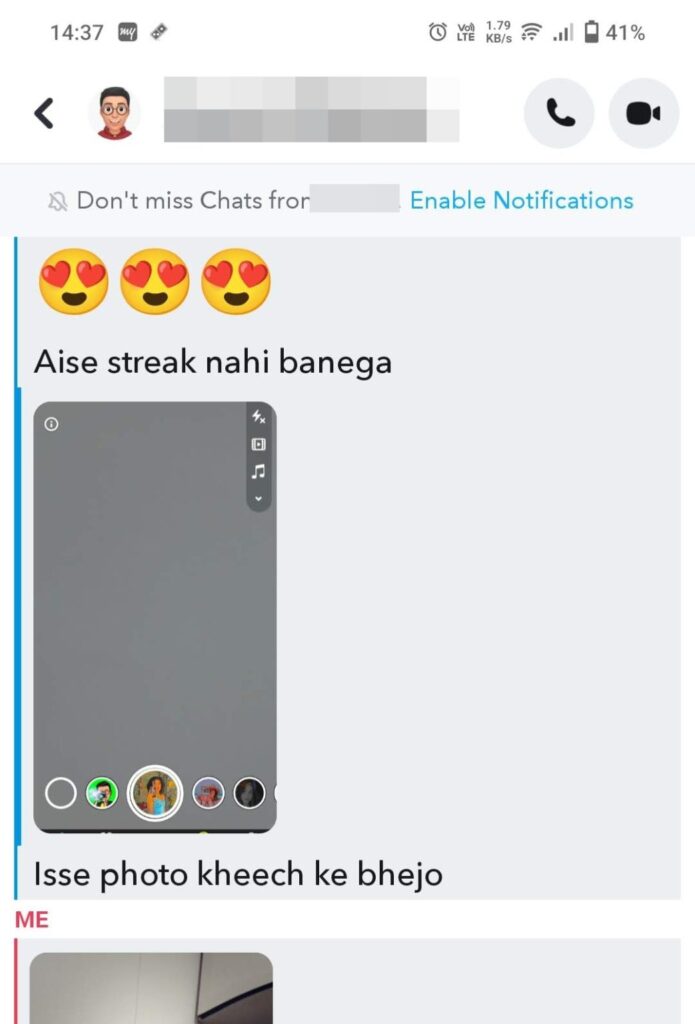
2. Open the chat that contains a snap you or a friend sent.
3. Scroll to find Snap and press and hold it.
4.
"Save to camera roll"
Select one.
5.
"memory"
Return to
Camera Roll
Switching to the section.
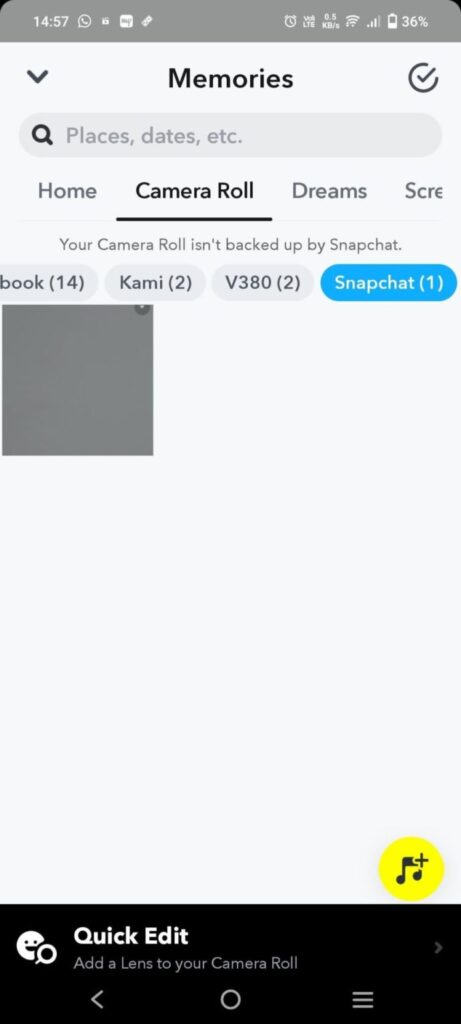
6. Filters such as Screenshot, Recent, and Facebook will be displayed on top of all images.
7.
Snapchat
Tap to view all saved images.
8. Finally,
"Recipient" button
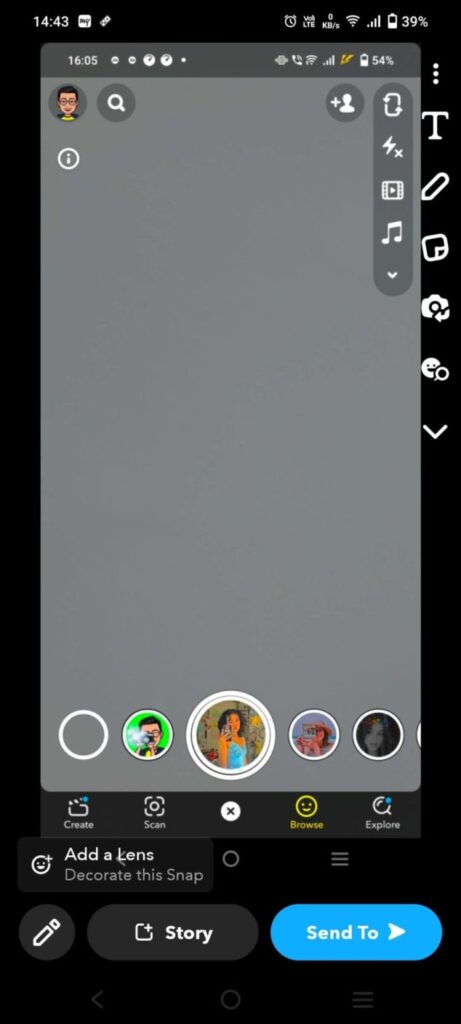
You can use it to access all the editing tools and send snaps to your contacts, stories, and other apps.
Please don't let these wonderful moments pass by.
Experienced Snapchat users know exactly which moments are worth snapping and which are not. However, even the best users make mistakes and may find themselves revisiting past photos that they now think are unsuitable for Snapchat.
Thanks to "Memories," you can make your camera roll part of Snapchat. Sure, you'll have to give up some editing perks, but ultimately, it's a worthwhile trade-off.
FAQ
Q: Can I send old snapshots as a series of photos?
A: No. Unfortunately, you cannot send photos or videos saved in "Memories" as a new snapshot to maintain a series of snapshots.
Q: How can I upload a snap without the message saying it's from my camera roll?
A: Unfortunately, you cannot send or upload photos or videos saved as memories without a message indicating that they were shared from your camera roll.