
YouTube offers a wide range of content, from educational videos to entertainment, and it's not suitable for everyone. Parents and guardians may be particularly concerned about the content their children can access on YouTube via Android devices. Fortunately, Google provides tools to help children have a safer online environment. There are several options to customize the YouTube experience to be more age-appropriate, such as enabling Restricted Mode, setting up a supervised Google account, or using YouTube Kids.
How to restrict YouTube on Android
This article will show you how to set restrictions on YouTube on Android. This will give your children peace of mind when exploring the internet. Let's explore how to make YouTube a safer place for your kids.
How to turn on Restricted Mode in the YouTube app
YouTube offers an option to use Restricted Mode settings. Follow these steps to enable it:
Step 1: Open YouTube on your mobile device.
Notice: Please make sure you are signed in to your YouTube account.
Step 2: In the upper right corner Profile picture Tap it.
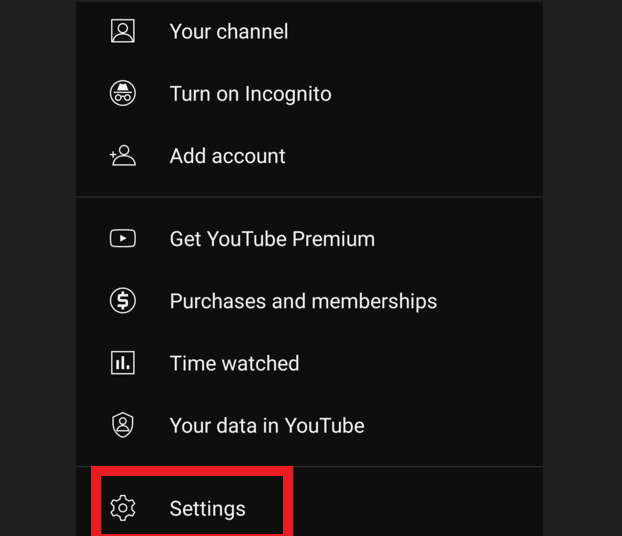
Step 3: Next, setting Tap it.
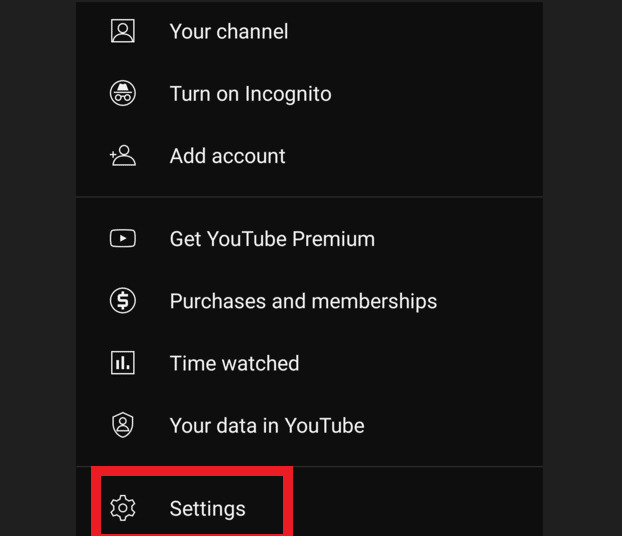
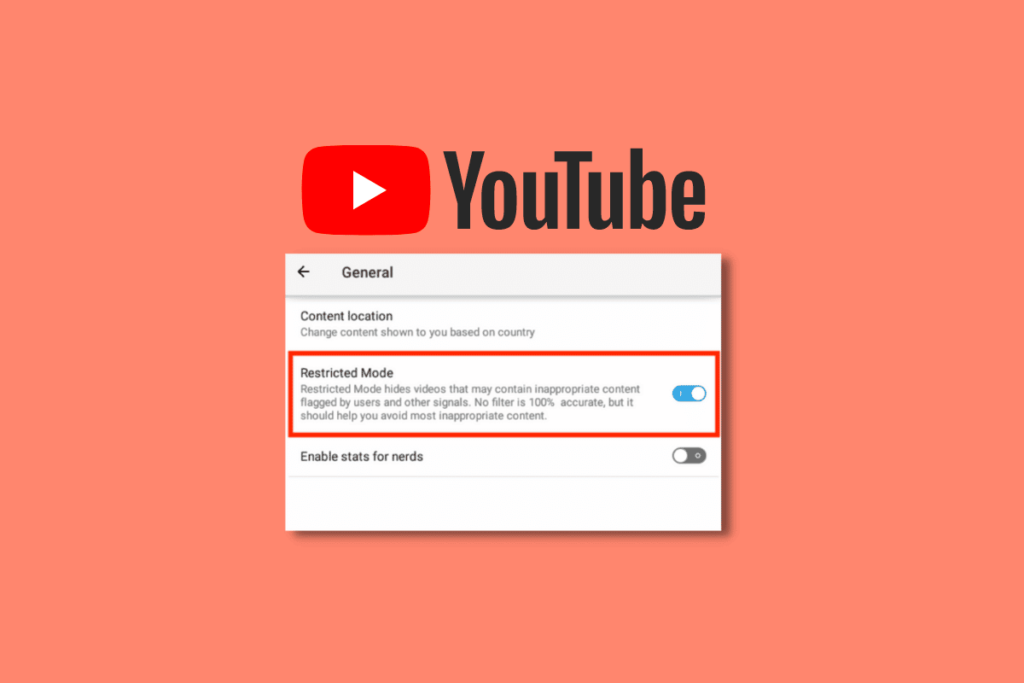
Step 4: generally Select one.
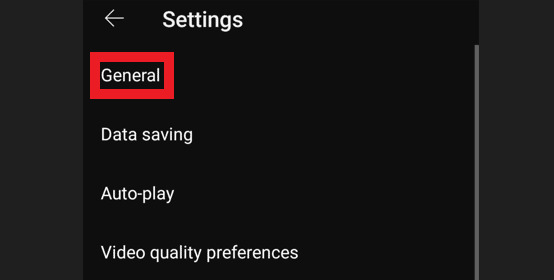
Step 5: Restricted mode toggle of on I'll do that.
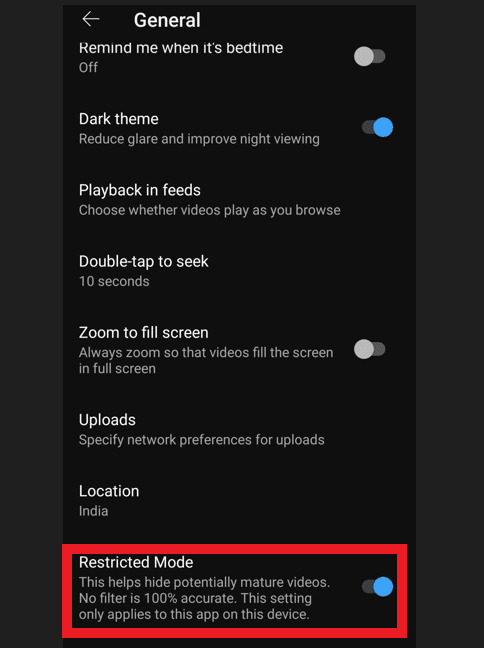
This is a handy parental control feature that helps prevent inappropriate or violent content from being exposed to younger viewers. Google also offers another app called YouTube Kids for children under 13. On the other hand, you can always turn this feature off if you need to find movies. Here's how to turn off YouTube's restricted mode.
How to turn off Restricted Mode in the YouTube app
If your child is old enough to handle more mature content, you can disable Restricted Mode. Disabling Restricted Mode is the same as enabling it; you just need to reverse the steps. Let's take a closer look.
Step 1: Open the YouTube app on your mobile device.
Notice: Please make sure you are signed in to your YouTube account.
Step 2: In the upper right corner Profile settings Tap it.
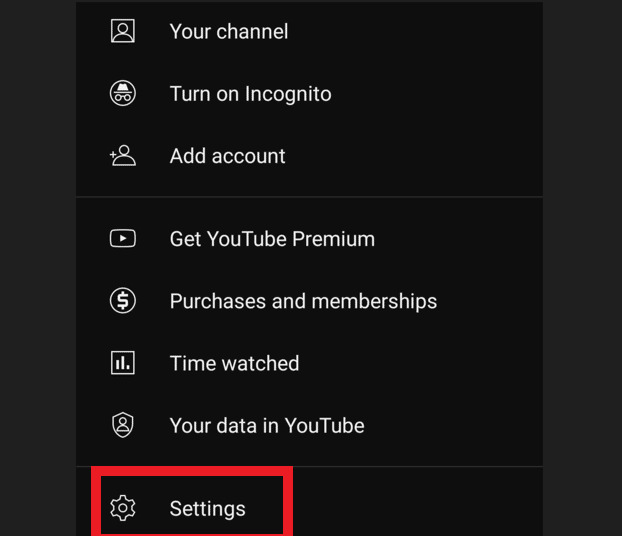
Step 3: Next, generally Tap it.
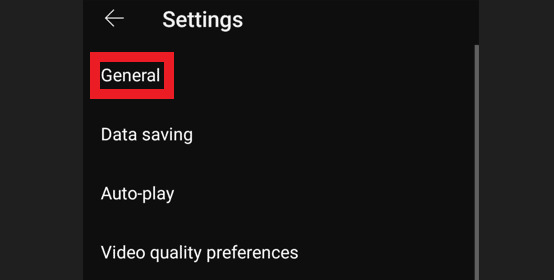
Step 4: Now, Restricted mode toggle Turn it off.
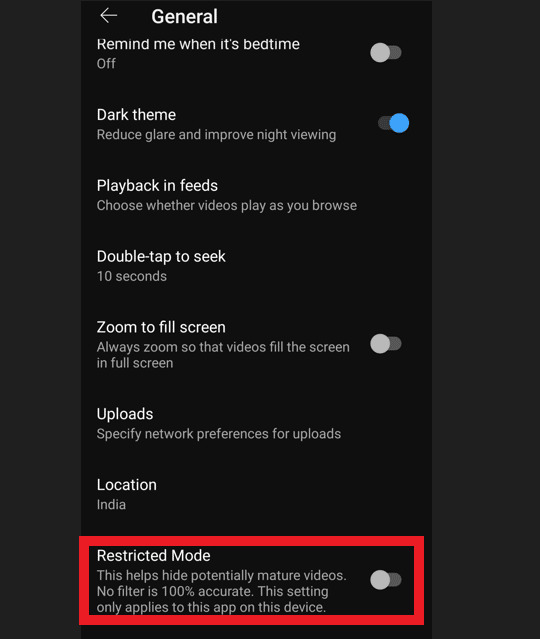
Here's how to turn off Restricted Mode on YouTube on Android. This way, not everything on the platform will be hidden. Next, let's look at the same process on iPhone/iOS devices.
How to turn on Restricted Mode in the YouTube iPhone app
You can turn on Restricted Mode in the YouTube iPhone app by following these steps.
Step 1: Open the YouTube app on your iPhone.
Notice: If you haven't logged in yet, please log in to your account. Sign in Please do so.
Step 2: In the upper right corner Profile picture Tap it.
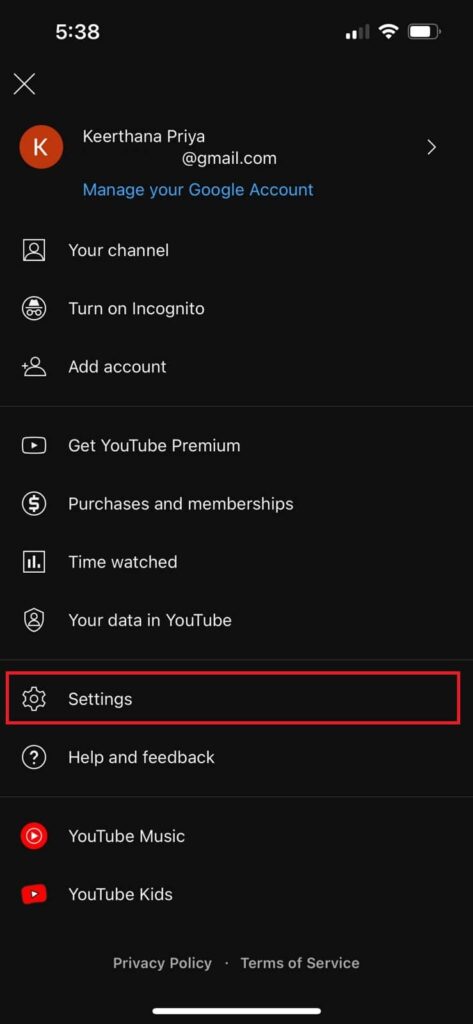
Step 3: Next, setting Tap it.
Step 4: generally Select one.
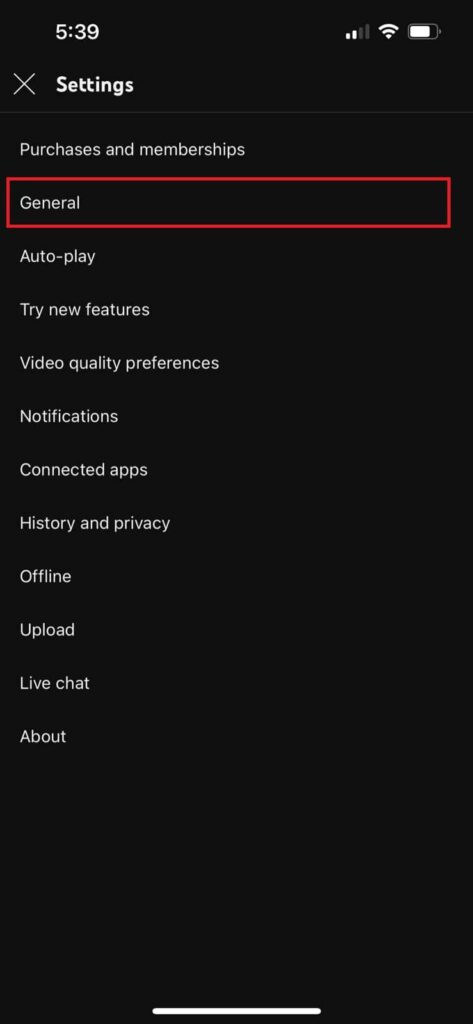
Step 5: Next, Restricted mode toggle Turn it on.
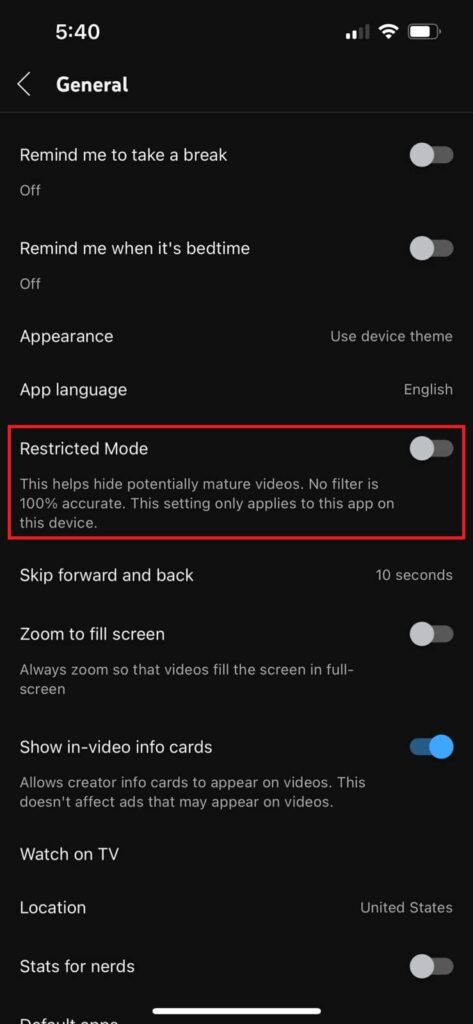
If, after setting Restricted Mode, you decide to disable it again for any reason, it only takes a minute to do so as long as you are logged into your YouTube account. The steps to disable Restricted Mode on YouTube on an iPhone are the same, but in reverse. Restricted mode toggle Turn it off.
Sometimes, even with YouTube's restricted mode enabled, you might still receive violent or inappropriate content. In such cases, you might want to seriously consider some free YouTube alternatives that could offer better protection, especially if you're concerned about children or teenagers accessing inappropriate information. Now you know how to restrict YouTube on Android and other devices.
Frequently Asked Questions (FAQ)
Q1. Does YouTube's restricted mode enable automatically?
Answer: No The Restricted Mode feature is disabled by default. If you are under 18, YouTube will automatically block potentially harmful content for users under 18.
Q2. Is restricted mode effective?
Answer: Yes. Restricted mode does a good enough job of filtering out most extreme content and fulfilling its promise to remove comments from videos.
Q3. Why can't I disable YouTube's restricted mode?
answer: There could be several reasons. For example, if the account Family Link You are being monitored, Under 18 For example, in such cases.
Q4. Why does YouTube claim that the network administrator enabled restricted mode?
Answer: Public Wi-Fi If you are using [this method], the person or group running the network may have enabled restricted mode. If you see this prompt while using your personal home network... If you receive the prompt, it may be due to your router's DNS settings, browser add-ons, or cookies. This is a possibility.
Q5. Why was I put into YouTube's restricted mode?
answer: If restricted mode is active, videos may not be available. Automated algorithm First, it looks for metrics such as video metadata, title, and language. These are determined by human reviewers. Age restriction Therefore, some videos may not be accessible in restricted mode.
The Restricted Mode feature helps filter content that you or other users on your device might not want to see. Refer to these instructions: How to restrict YouTube on Android I hope you understood it. If you have any questions or suggestions, please let me know in the comments section below. Also, please tell me what you would like to learn next.