How to fix the problem where YouTube videos load but don't play. If you're facing the problem of YouTube videos loading completely but not playing, don't worry. Today we'll look at how to fix this issue. It's a common problem for YouTube videos to load but not play in Chrome, Firefox, Internet Explorer, Safari, and other browsers.
There are several reasons why this problem might occur, including a poor internet connection, incorrect proxy settings, bitrate issues, a corrupted Adobe Flash Player, incorrect date and time settings, and browser cache & cookies. So, let's look at how to fix the problem of YouTube videos loading but not playing using the troubleshooting guide below.
How to fix the problem where YouTube videos load but don't play.
Don't forget to create a system restore point in case something goes wrong.
Note: These specific steps are for Google Chrome. For Firefox, Opera, Safari, or Edge, Please check the instructions according to your browser.
Fixed an issue where YouTube videos would load but not play.
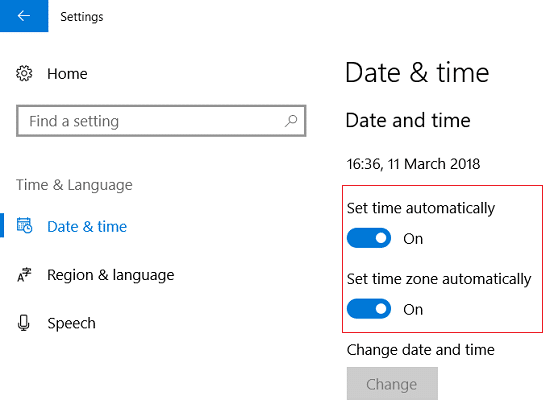
Step 1: Right-click on the date and time in the taskbar, "Adjust the date/time" Select one.
Step 2: "Set the time automatically" Please turn on the toggle.
Step 3: For Windows 7, "Internet time" Click, "Synchronize with an internet time server." Please check the box.
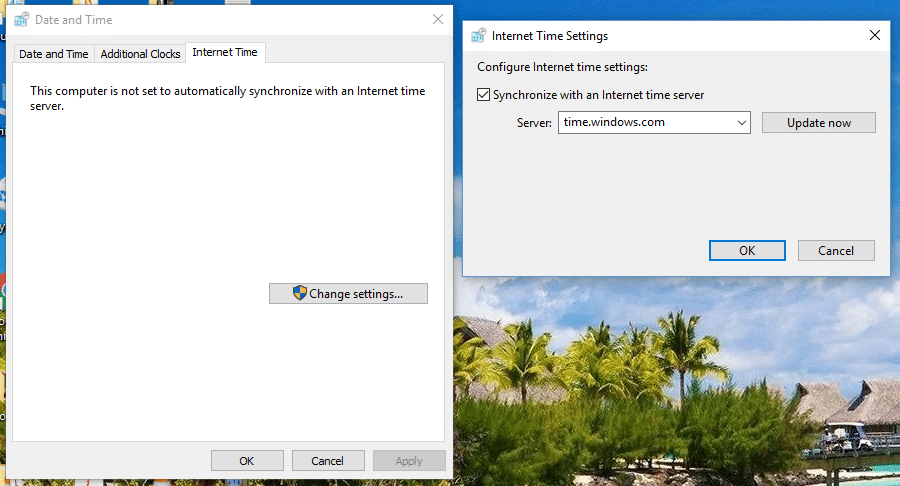
Step 4: Select "time.windows.com" as the server, update, and click "OK". You don't need to complete the update; just click "OK".
Method 2: Clear your browser's cache and cookies.
If your browsing data hasn't been cleared for a long time, you may encounter problems where YouTube videos load but don't play.
Step 1: Clear browser data in Google Chrome.
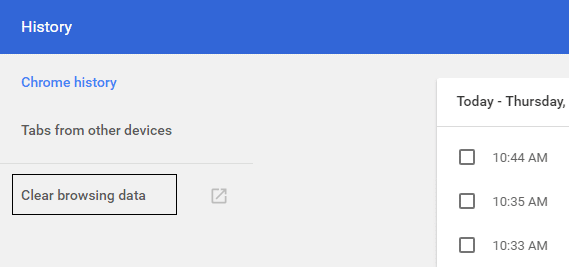
Open Google Chrome, Ctrl+H Press to open the history.
Step 2: Next, from the left panel... "Clear browsing data" Click here.
Step 3: Make sure "All time periods" is selected under "Remove the following items from below".
Step 4: Check the following as well:
- Browsing history
- Download History
- Cookies, Resource Sites, and Plugin Data
- Cached images and files
- Automated form data
- password
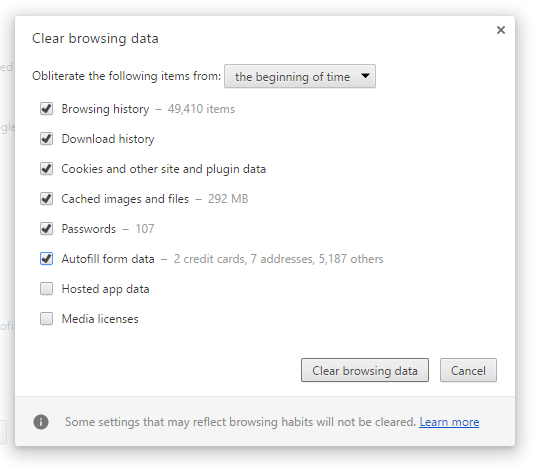
Step 5: Right now Browsing data Click the Clear button and wait for it to finish.
Step 6: Close your browser and restart your PC to save the changes.
Clear browser data in Microsoft Edge
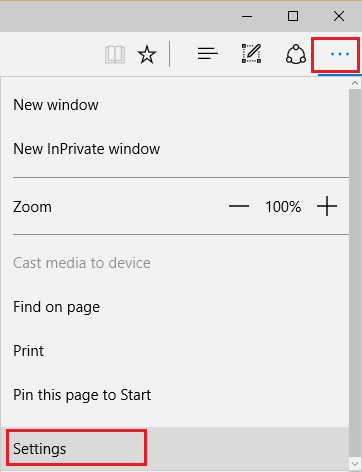
Step 1: Open Microsoft Edge, The three dots in the upper right corner Click setting Select one.
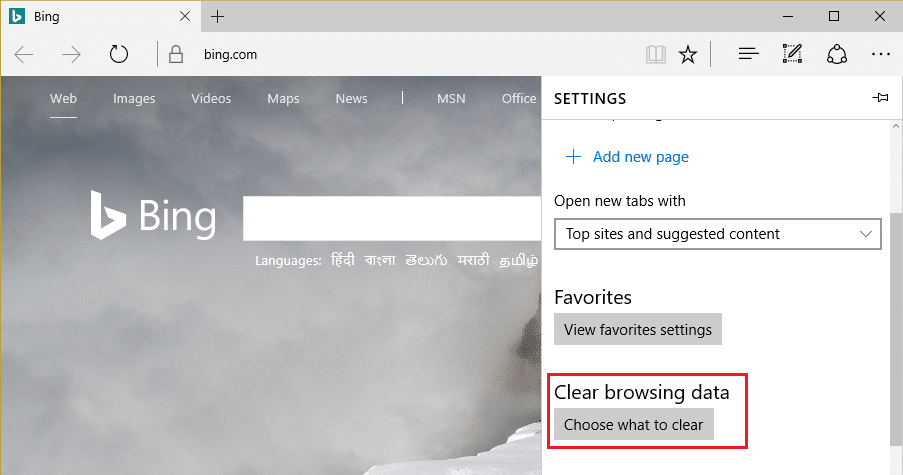
Step 2: "Clear browsing data" Scroll until you find it, then "Select the content to complete" Click the button.
Step 3: Select all, "Clear" Click the button.
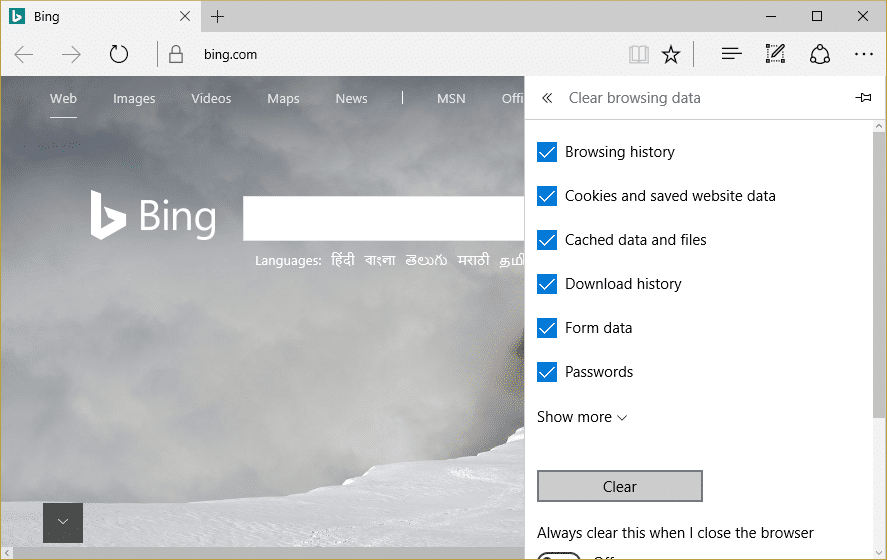
Step 4: Wait for the browser to clear all data. Restart Edge Yes, by clearing your browser cache, The issue where YouTube videos load but don't play has been resolved. This may work, but if this procedure doesn't help, try the following steps.
Method 3: Refresh your browser
Update Google Chrome
Step 1: Open Google Chrome, Three dots in the upper right corner Click, "Help" Select then "About Google Chrome" Click here.

Step 2: Check if Google Chrome is up to date, and if not, 「更新」 A button will appear, so click it.
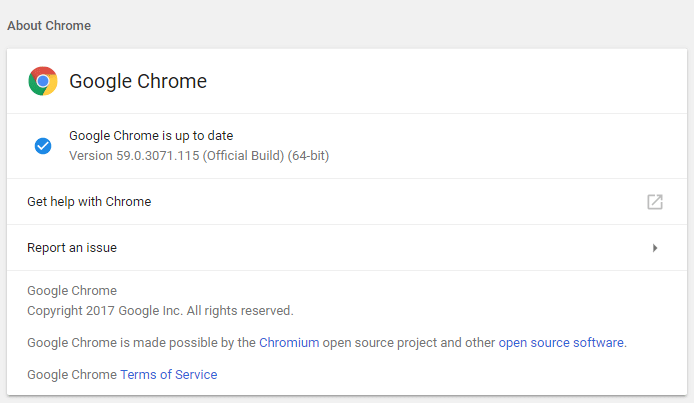
This may update Google Chrome to the latest build and resolve the issue where YouTube videos load but don't play.
Update Mozilla Firefox
Step 1: Open Mozilla Firefox, Three horizontal lines in the upper right corner Click here.
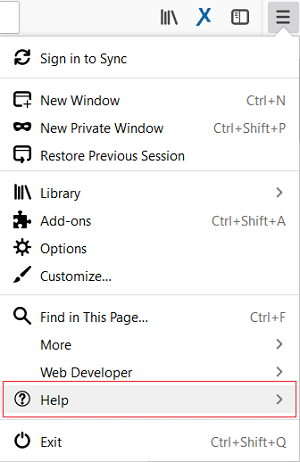
Step 2: From the menu "Help" > "About Firefox" Click here.
Step 3: Firefox will automatically Check for updates And, if there are any updates, I will download them.
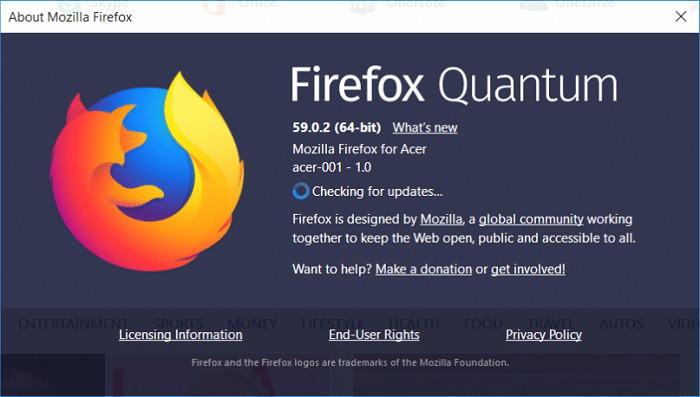
Step 4: To save the changes Restart your PC I will.
Method 4: Reset the network connection
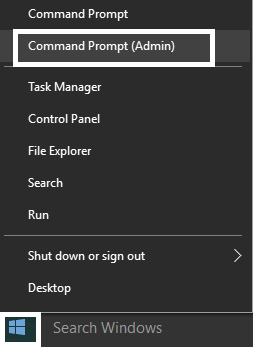
Step 1: Press Windows key + X, Command Prompt (Administrator) Select one.
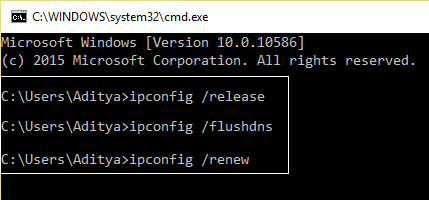
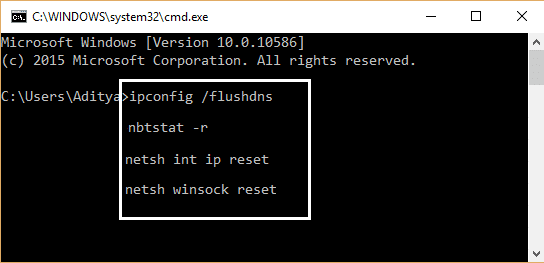
Step 2: Enter the following command cmd Enter the information into the respective fields. Enter key Press this button.
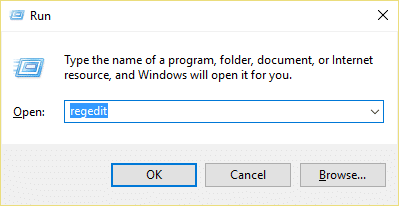
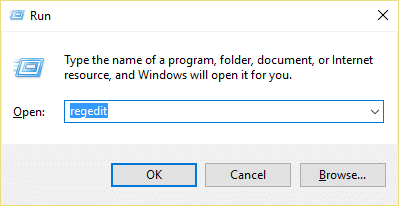
Step 3: If you see an access denied error, Windows key + R Press the Enter key, type regedit, and press Enter.
Step 4: Navigate to the following registry entry.
Step 5: Right-click 26 Select "Access Permission".
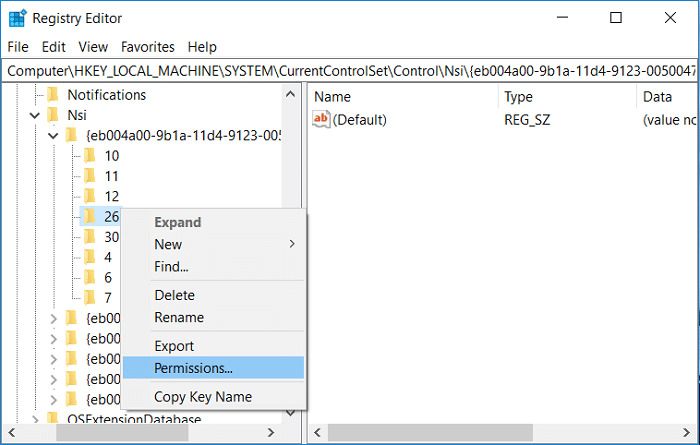
Step 6: "addition" Click and type EVERYONE, then click OK. If EVERYONE already exists, simply "Full control (allow)" Check the box.
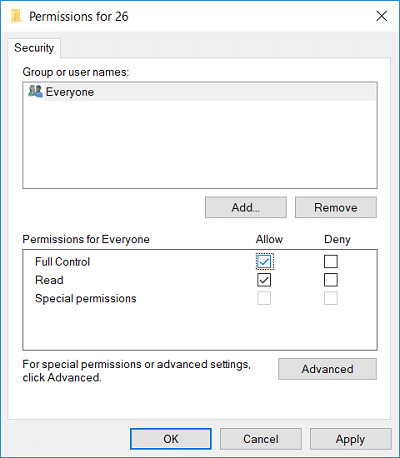
Step 7: Next, 「適用」 Click then 「OK」 Click here.
Step 8: Run the above command again in CMD, Restart your PC Then save the changes.
Method 5: Delete temporary files
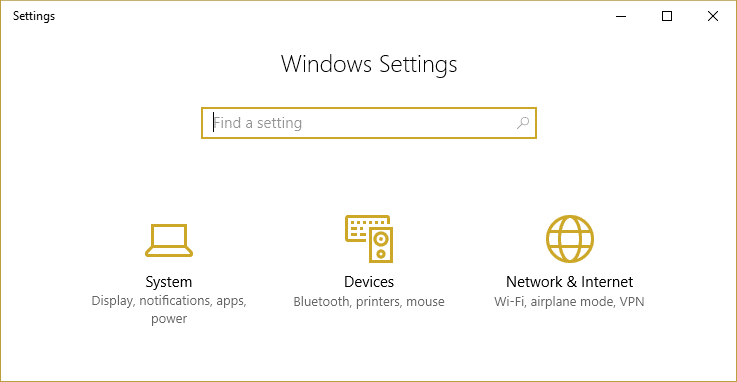
Step 1: Press Windows key + I to open Windows Settings, then go to "System" > "Storage".
Step 2: The hard drive partitions are listed, "This PC Select and click "".
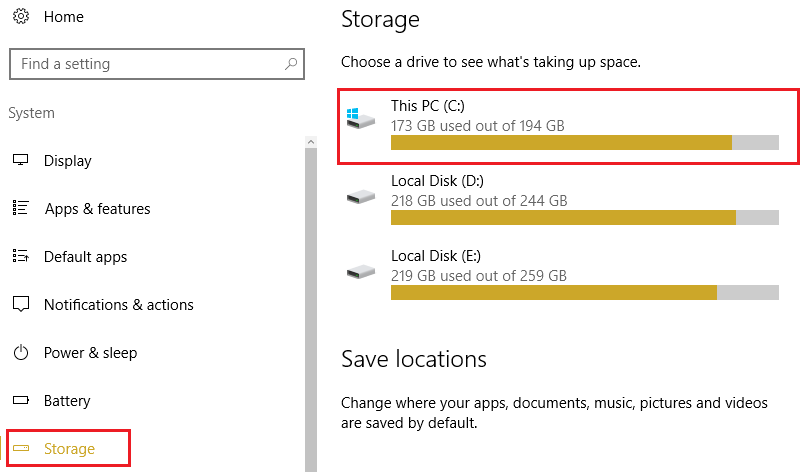
Step 3: Scroll all the way down, "Temporary files" Click here.
Step 4: "Delete temporary files" Click the button.
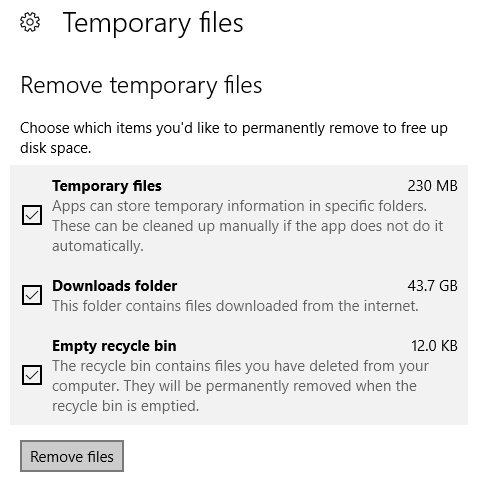
Step 5: Once the above process is complete, restart your PC.
Manually clean up temporary files.
Step 1: Press Windows key + R, temp Type this and press the Enter key.
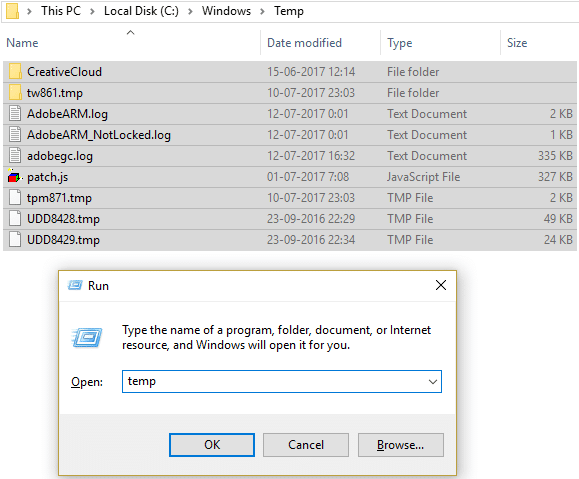
Step 2: Click Continue to open the temporary folder.
Step 3: Select all files or folders in the temporary folder and delete them permanently.
Note: To completely delete a file or folder, Shift+Del You need to press the button.
Please check if the above steps resolve the issue of YouTube videos loading but not playing. If the problem persists, please continue with the following steps.
Method 6: Reset your browser settings
How to reset Google Chrome
Step 1: Open Google Chrome, Three dots in the upper right corner Click "setting" Click here.
Step 2: Scroll down in the settings window, and at the very bottom 「詳細」 Click here.
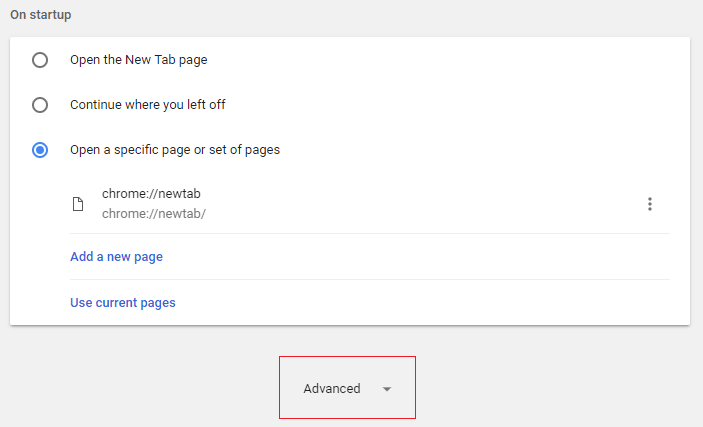
Step 3: Scroll all the way down again, "Reset" Click on the column.
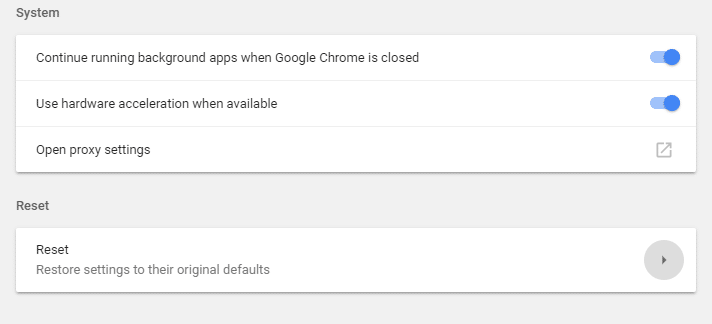
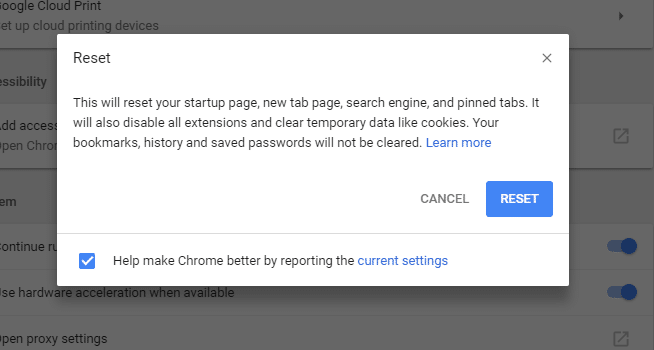
Step 4: This will open a pop-up window asking if you want to reset again, so click "Reset".
How to reset Mozilla Firefox
Step 1: Open Mozilla Firefox, Three horizontal lines in the upper right corner Click here.
Step 2: Next, "Help" Click, "Troubleshooting Information" Select one.
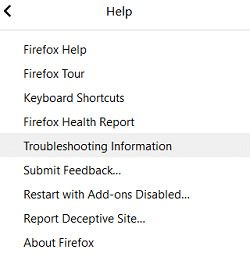
Step 3: First, try Safe Mode. To do this, "Disable add-ons and restart." Click here.
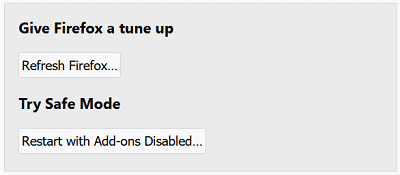
Step 4: Check if the problem has been resolved. If not, under "Tune up Firefox" "Refresh Firefox" Click here.
Step 5: Restart your PC to save the changes and check if the issue of YouTube videos loading but not playing is resolved.
Method 7: Disable all extensions
Disable Firefox extensions
Step 1: Open Firefox and enter in the address bar 「about:addons」 Type that and press the Enter key.
Step 2: Next to each extension "Disable" Click to disable all extensions.
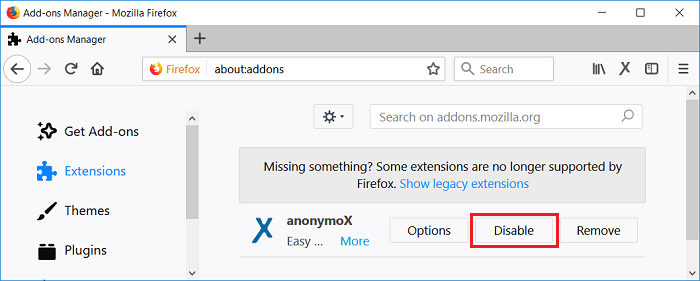
Step 3: Restart Firefox Next, enable each extension one by one to identify the extension causing the problem.
Note: After enabling the extension, Restart Firefox It is necessary.
Step 4: These identified Remove the extension and restart your PC. I will.
Disabling extensions in Chrome
Step 1: Open Google Chrome and enter in the address bar chrome://extensions Type that and press the Enter key.
Step 2: First, disable all unnecessary extensions and then remove them by clicking the delete icon.
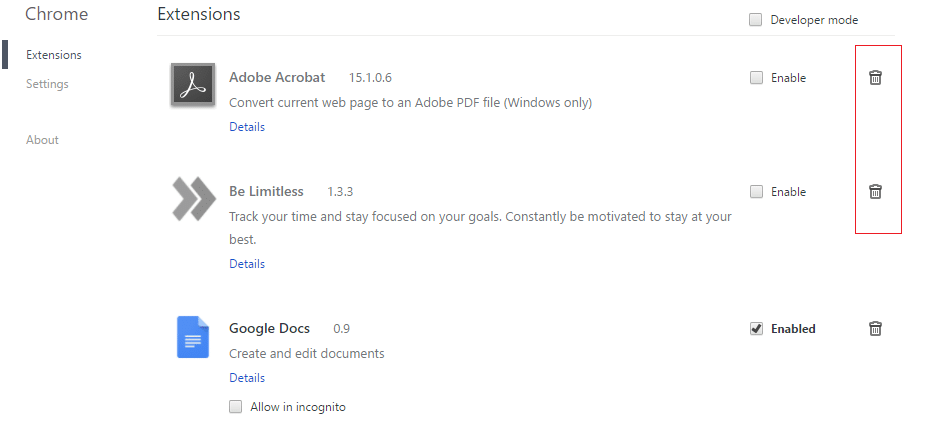
Step 3: Restart Chrome and check if this resolves the issue of YouTube videos loading but not playing.
Step 4: If you are still having trouble with YouTube videos, disable all extensions.
Method 8: Reinstall the sound driver
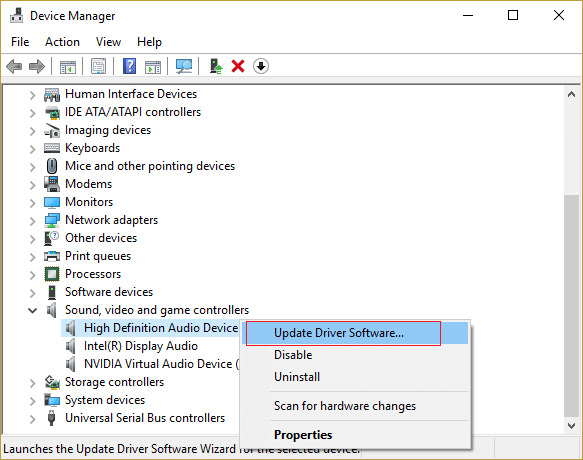
Step 1: Windows Key + R Press the key and type devmgmt.msc, Enter key Press the down arrow to open Device Manager.
Step 2: "Sound, video, and game controllers" Expand it, right-click on Realtek High Definition Audio "Driver update" Select one.
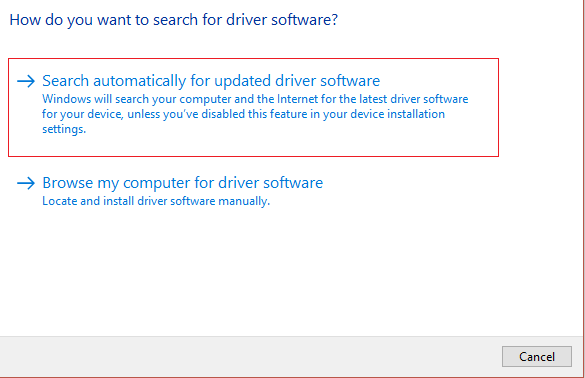
Step 3: On the next screen "Automatically search for updates" Click here.
Step 4: Wait for the process to complete. If any updates for the latest sound drivers are found, click Install to complete the process. Once finished, close the window. Restart your PC Then save the changes.
Step 5: However, if the driver is already up to date, "The optimal driver software for your device is already installed." The following message will be displayed.
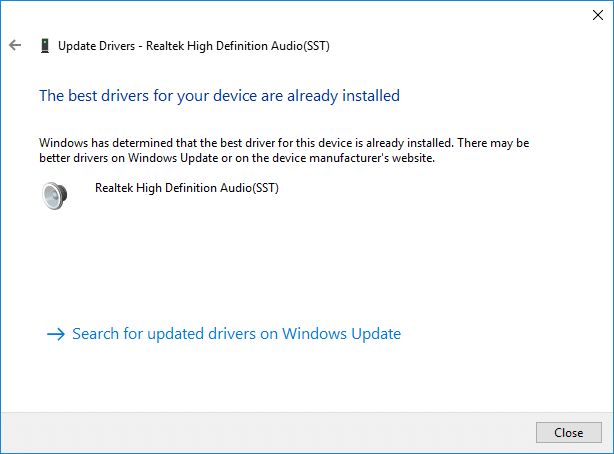
Step 6: Click Close and you don't need to do anything else.
Step 7: Once completed, restart your PC. Save changes I will.
If the problem of YouTube videos loading but not playing persists, you may need to manually update your drivers. Please follow these steps:
Step 1: Open Device Manager again and right-click on Realtek High Definition Audio. "Driver update" Select one.
Step 2: Now click "Browse my computer for driver software and install it".
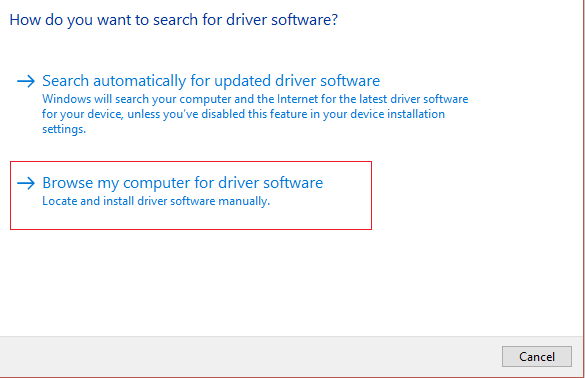
Step 3: Next, "Choose from the available drivers on your computer." Select one.
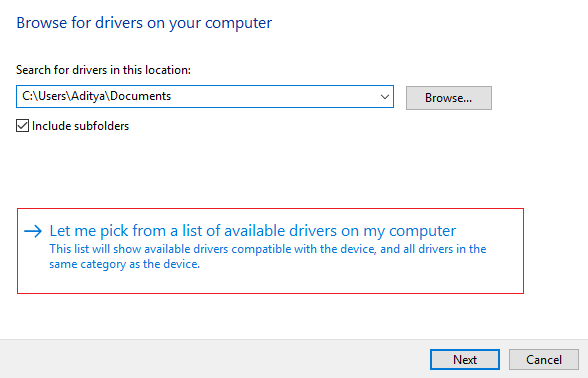
Step 4: Select the appropriate item from the list. driver Select, to the next Click here.
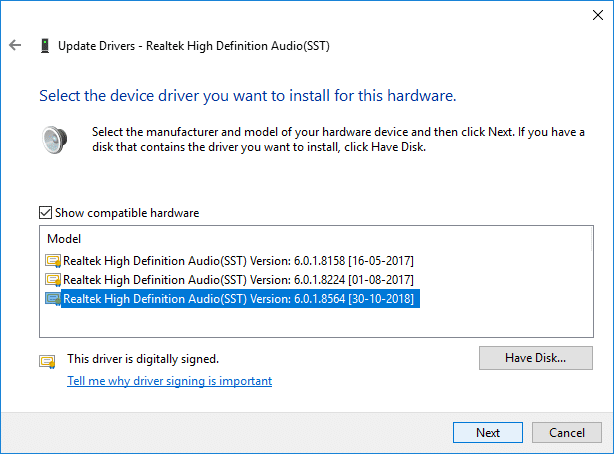
Step 5: Once the driver installation is complete, restart your PC.