YouTube is the most popular video streaming website. However, you may encounter some problems while watching your favorite videos. One of the most common problems users experience is when watching a video. "No sound." That's the thing. Certainly, this can be very frustrating, but there is a solution to this problem as well.
Every problem has a solution. All you need is to find the best solution. To find a solution to this problem, you need to identify the cause of the lack of sound on YouTube. There are several factors that can interfere with YouTube audio, such as site settings, browser issues, and system audio problems. However, by taking a systematic approach to narrowing down the problem and finding a solution, you can be sure to find the root cause of the problem and resolve it immediately. Below are some ways to fix the problem of no sound on YouTube.
5 ways to fix the problem of no sound on YouTube
Please create a restore point in case something goes wrong.
Method 1: Check the system sound.
The first thing you should do is check if your system sound is working correctly. A common cause of no sound on YouTube is that your system sound isn't working. To check your system sound settings, right-click the sound icon in the taskbar, "sound" Select it and click the Test button.
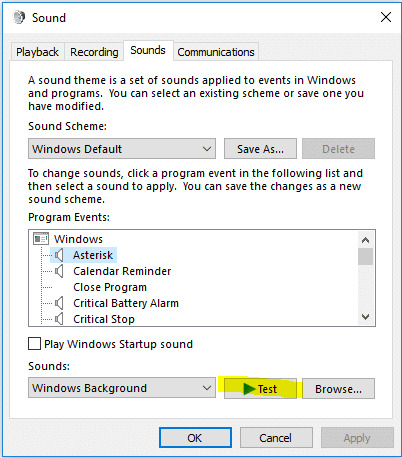
If there is no sound, you need to check your system settings.
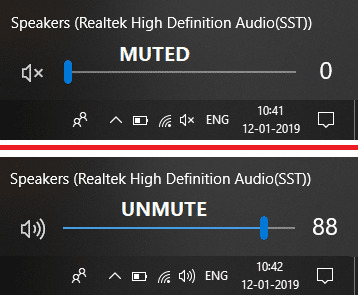
1、 Volume settings – One possible issue is that the volume is muted. You can check this in the taskbar. Click the audio icon, blue If a dash is displayed and the speaker is muted, X mark This message will appear. Re-enabling it may help.
2、 Check and update your sound drivers – Often, we tend to forget that we need to update some drivers regularly. For this issue, you should check your sound driver. Open Device Manager and you will see Sound & Video Set. If there is a yellow exclamation mark under this setting, you need to click on the driver and update it. For instructions, see the last method to see how to manually update your sound driver step by step.
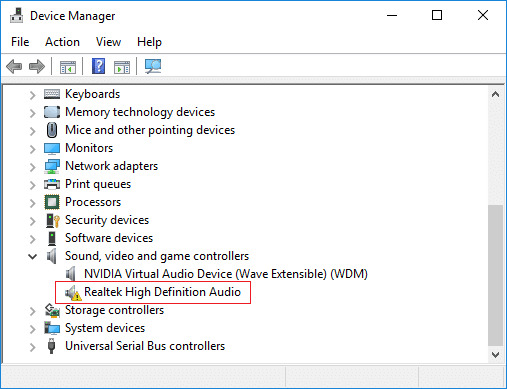
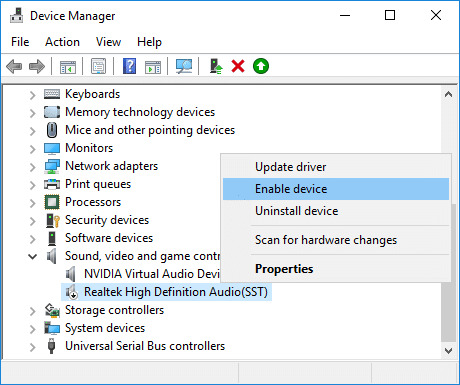
3、 Enable the sound driver. – You may have accidentally disabled the sound driver. You need to check Device Manager and the sound driver. If it is disabled, right-click the sound driver and "valid" Select an option.
Method 2: Browser Issues
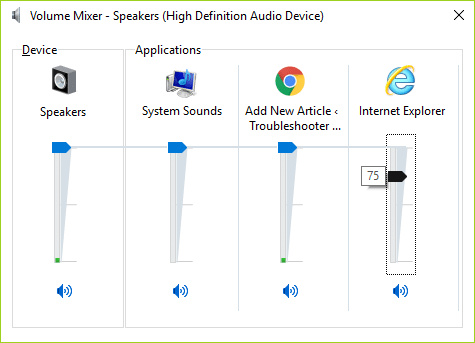
If you're playing a YouTube video in the Chrome browser and there's no sound, try opening the same video in a different browser. If the sound works, you know the problem is with the browser. This should fix the issue with that browser. Click the speaker icon in the taskbar. right-click death, "Volume Mixer" Open [the relevant section] and fix the problem in your selected browser. In some cases, your speaker may be muted for a specific browser and may need to be enabled. If you don't have another browser installed, you may need to install one to check this option.
Method 3: Update Adobe Flash Player
If you can open a Flash video on another video streaming site and hear sound, the problem might be in your YouTube settings. However, if you're having trouble with sound, the issue could be with Adobe Flash Player. You need to make sure that Adobe Flash Player is the latest recommended version for Windows. If your version is not the latest recommended version for Windows, update it or install the latest version of Adobe Flash Player to resolve the issue.
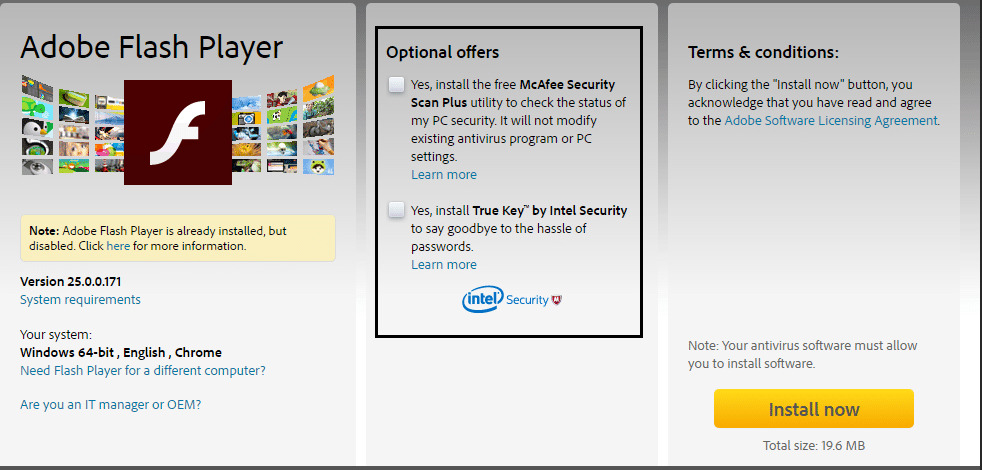
Additionally, you need to ensure that Adobe Flash Player is enabled for your browser on Windows 10.
Method 4: YouTube settings
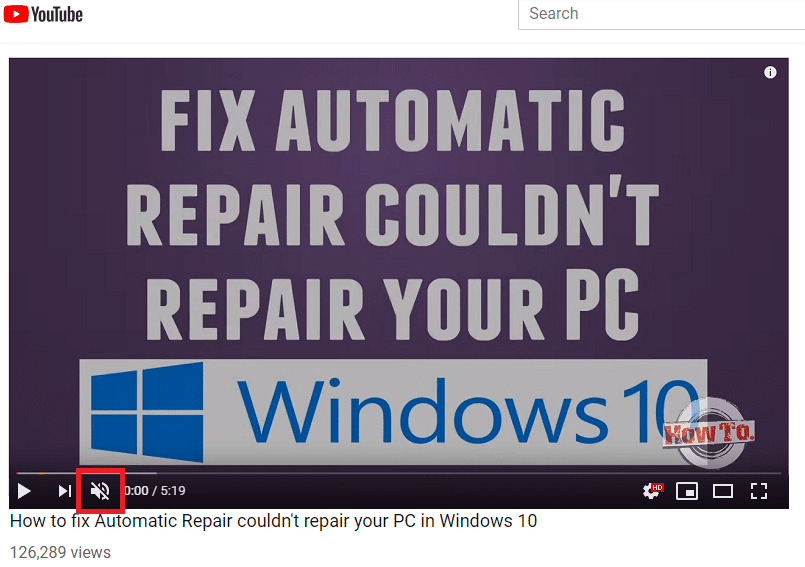
YouTube audio settings I accidentally muted it. It's possible. Yes, it happens sometimes. Sometimes you mute YouTube and then forget to re-enable the sound. Look at the speaker icon on the YouTube video. If the icon shows X mark If this icon is displayed, the sound is disabled or muted. You can easily re-enable it and adjust the volume settings by moving your mouse over the icon. To increase the volume, you need to move the slider to the right. 。
Method 5: Update your sound card driver
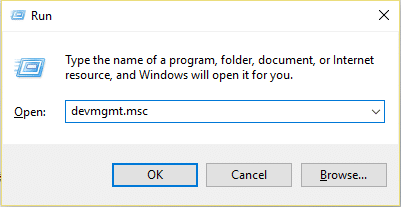
Step 1: Windows Key + R Press, devmgmt.msc Type this and press Enter, Device Manager Open it.
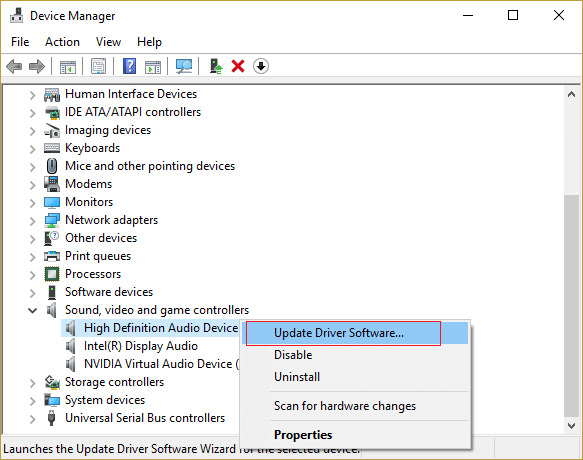
Step 2: Expand "Sound, video, and game controllers," then 「Realtek High Definition Audio」 Right-click, "Driver update" Select one.
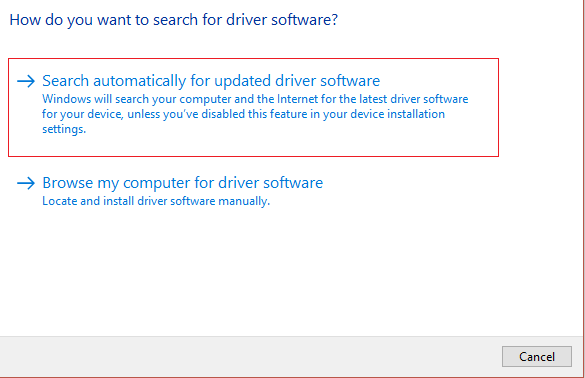
Step 3: In the next window, "Search for driver software to update automatically" Click here.
Step 4: If you already have the latest drivers, you will see a message that says, "The correct drivers for your device are already installed."
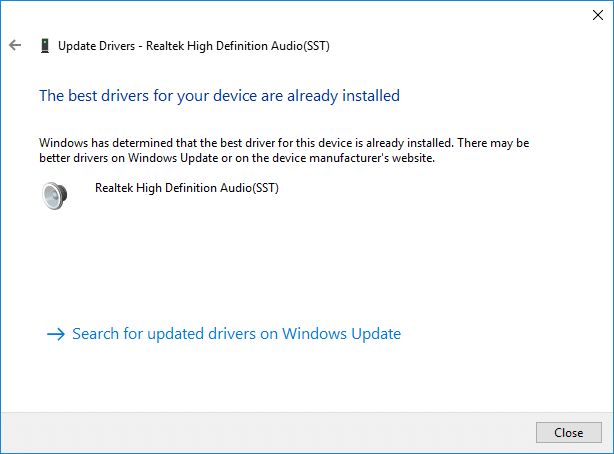
Step 5: If you don't have the latest drivers, Windows will automatically update the Realtek audio drivers to the latest updates.
Step 6: Once the process is complete, restart your PC to save the changes.
If the Realtek High Definition Audio driver issue persists, you may need to manually update the driver. Please follow these steps:
Step 1: Open Device Manager again, Realtek High Definition Audio Right-click and select "Update Driver".
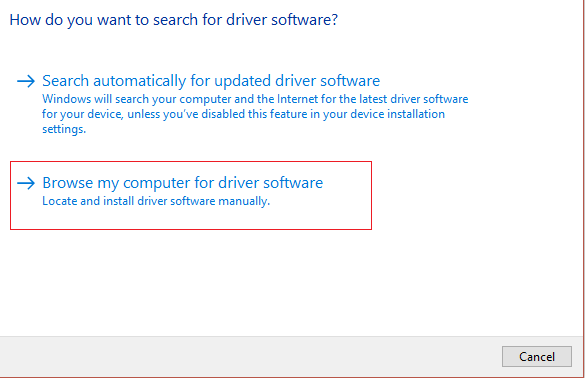
Step 2: Now "Please refer to your computer's driver software." Click on it.
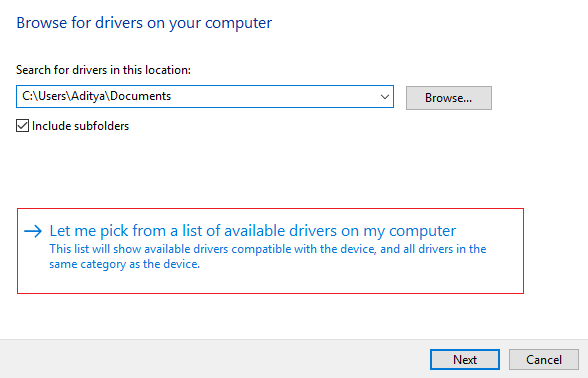
Step 3: Next, "Choose from the available drivers on your computer." Select one.
Step 4: Select the appropriate driver from the list. choice Then click Next.
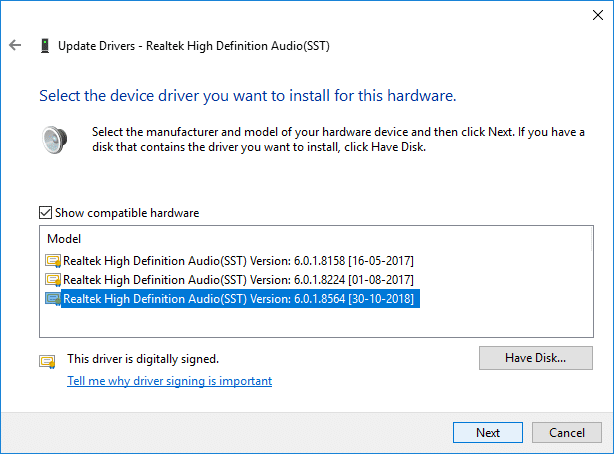
Step 5: Once the driver installation is complete, restart your PC.