Instagram is often filled with entertaining videos that rely on audio to provide a complete experience. However, while scrolling through your feed, you may come across posts with no sound at all, just the frustrating words "Audio Unavailable." If you can't hear the sound on an Instagram video, it probably means there's a technical problem. Fortunately, there are several simple troubleshooting tips you can try to restore it. This article will discuss common causes of this problem and different solutions.
How to fix the issue of no sound on Instagram
Make sure your device is connected to a stable network. It should be connected to either Wi-Fi or mobile data. If you're experiencing problems with a specific network, try switching to another network to see if the audio works. If you're unable to use audio on Instagram, it may be due to a network connection issue.
Method 1: Check your device's volume and mute settings.
- Please check if your device's volume is muted or if the setting is too low.
- Adjust the volume using the device's physical buttons or settings.
- Make sure the mute setting is turned off within the Instagram app. Look for the speaker icon and make sure it's not turned off.
Method 2: Restart the Instagram app
Close the Instagram app completely by swiping it off the screen or using the app switcher. Reopen the app and check if audio is available.
Method 3: Update the Instagram app
- Open your device's app store (Google Play Store for Android or App Store for iOS).
- In the app store's search bar 「Instagram」 Search for this.
- If there is an update, it will appear next to the Instagram app. "update" A button will appear.
- "update" Tap the button to update the app to the latest version.
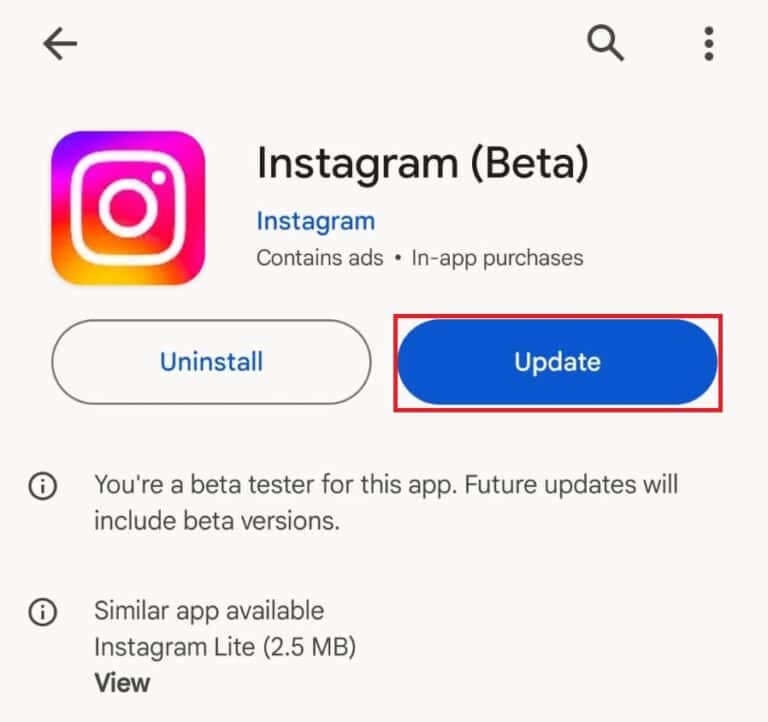
Updating the app will fix bugs, including audio-related issues, and improve performance.
Method 4: Restart your device.
- Turn the device off completely.
- Wait a few seconds, then turn it on again.
- Open the Instagram app and check if the audio is working.
Method 5: Clear your Instagram cache
- Go to your device's "Settings".
- Scroll down and tap "Apps" or "Applications".
- In the list of installed apps 「Instagram」 Find it and tap it.
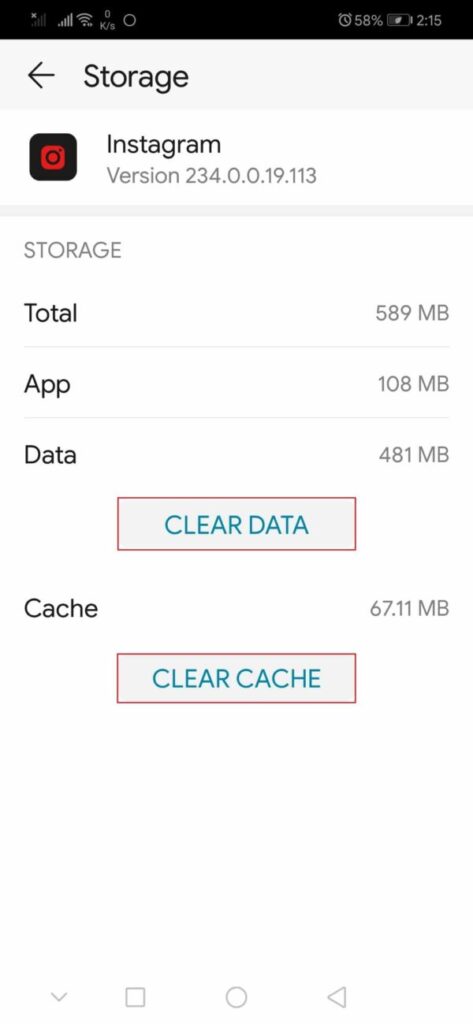
- "Storage" Alternatively, tap "Storage & Cache".
- temporary Delete files To do this, tap "Clear Cache".
- Restart your device and check if audio is available.
Method 6: Uninstall and reinstall the Instagram app.
- Find the Instagram app on your device.
- Press and hold the app icon until the menu appears.
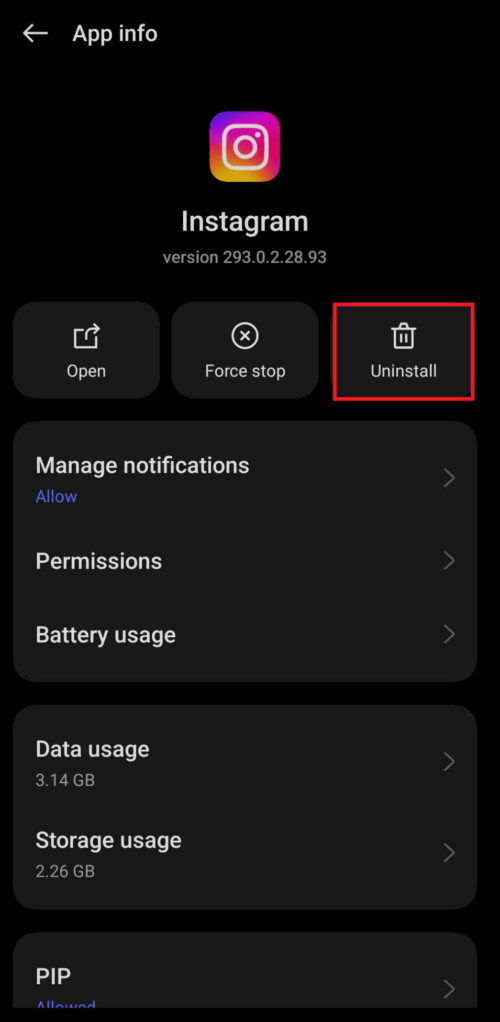
- Tap the option to uninstall or remove the app.
- I will confirm the uninstallation.
- Go to your device's app store and search for "Instagram".
- Tap the "Install" button to reinstall the app.
- Open the app, log in, and check if voice is available.
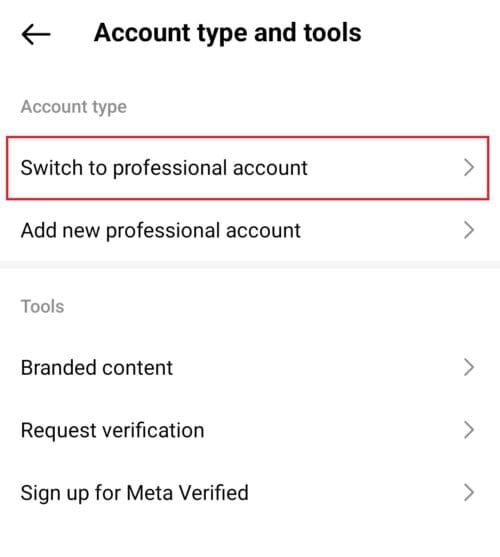
Method 7: Switch to a Professional Account
- Open the Instagram app and go to your profile.
- Tap the hamburger menu (three lines), "setting" Select one.
- "account" Scroll down to "Switch to a Professional Account" Select one.
- Follow the instructions to complete the process.
Method 8: Use the audio saving function
- Find the Reel that contains the audio you want to use.
- At the bottom of the reel Voice name Tap it.
- Select "Save audio" to use later in your Reel.
Method 9: Contact Instagram Support
- Open your profile screen and tap the hamburger menu.
- "Settings and Privacy" Tap it.
- Scroll down under "Other Information and Support" to find help.
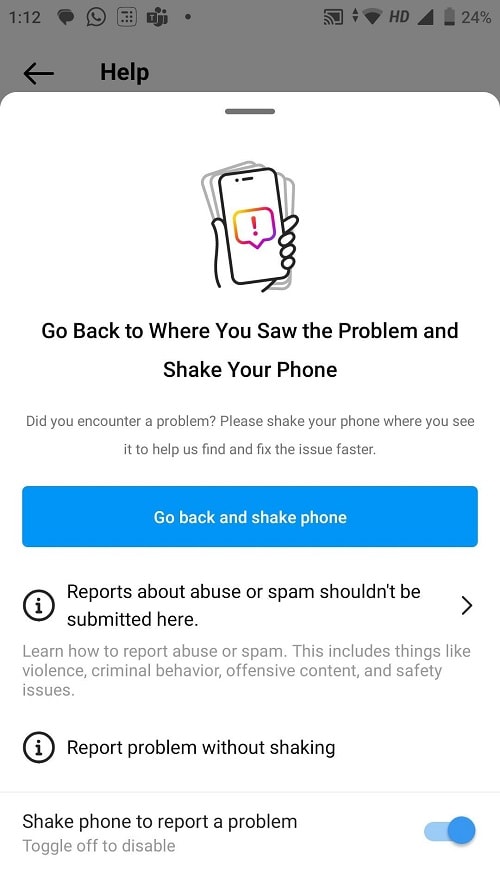
- "Report a problem" Select one.
- Tap "Report a problem without shaking."
Fixing Instagram audio problems usually requires a few simple troubleshooting steps. These methods, such as ensuring your device's volume is properly adjusted, checking for app updates, and reinstalling Instagram, aim to resolve most audio issues you might encounter. If these steps don't resolve your problem, we recommend contacting Instagram's support team for further assistance.