

With choices constantly evolving, entertainment options have expanded dramatically in recent years. YouTube TV, offering over 100 TV channels and on-demand content across various genres, has captured viewers' attention and established itself as a major source of entertainment. However, if the service no longer suits your preferences, you can always cancel your subscription to try alternative streaming options or reduce your screen time. This article will show you how to cancel your YouTube TV subscription on your Android device.
Cancel your YouTube TV subscription.
YouTube TV offers a wide range of content options and add-ons, making it a great choice to make your experience unforgettable. However, situations may arise where you need to cancel your subscription. Simply follow these steps.
Step 1: On your Android smartphone Youtube TV Open it.
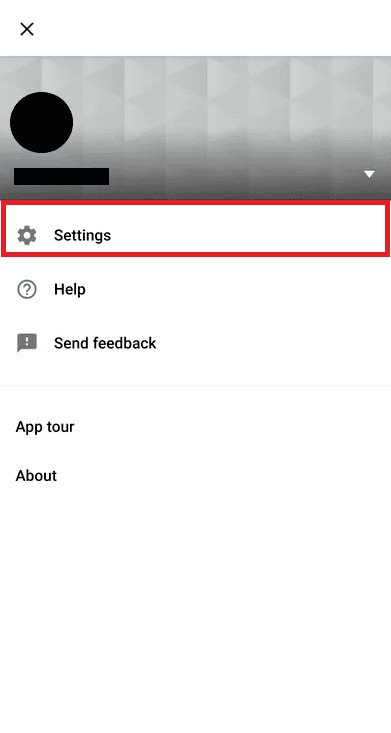
Step 2: Top right corner Profile icon Tap, setting We will move to this location.
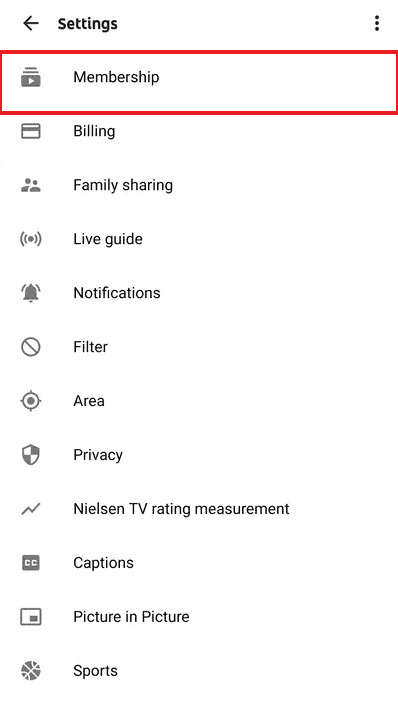
Step 3: From the menu "Membership" Select one.
Step 4: Next, "Pause or cancel your membership" Tap it.
Step 5: "Cancel membership" Tap and select a reason for cancellation.
Step 6: "Continue with cancellation" Select, "Cancel membership" Tap to check.
Why can't I cancel my YouTube TV subscription?
If you cannot cancel your YouTube TV service, here's why:
- YouTube TV is currently experiencing server downtime issues.
- The device's internet connection is unstable and slow.
- I accidentally suspended my membership instead of canceling my subscription.
Can I cancel YouTube TV at any time?
Yes, you can cancel your YouTube TV service at any time. You can cancel it after a month, a few months, or even a few years. However, if you have already been charged for your plan, you will not receive a refund, so you can continue using the service until your plan expires. If you are in a trial period, remember to cancel your subscription before it switches to a paid membership.